

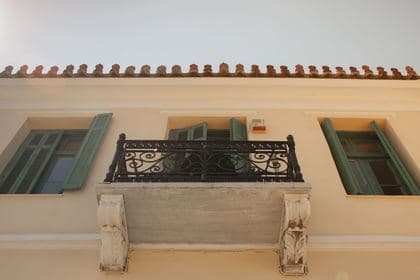
From photos to a report.

Every export is a ZIP. Inside it, next to the spreadsheet and the photos, FieldPic writes a README that explains the format and offers five ready prompts — so you upload the ZIP to an assistant and paste one of them. Here is that done once, end to end, with nothing edited afterwards.

  1. Export the survey

    One tap on the checklist's share icon. This one is a property inspection: 19 items, 8 of them photographed, 11 photos.

    FieldPic_Maple-St-Apt-3B_2026-09-20.zip

    ├── README.md
    ├── data.csv
    ├── metadata.json
    └── photos/
        ├── item_001_1.jpeg
        ├── item_003_1.jpeg
        ├── item_003_2.jpeg
        └── … 8 more

    photos/ — the 11 photos the assistant read

    • item_001_1.jpeg
    • item_003_1.jpeg
    • item_003_2.jpeg
    • item_004_1.jpeg
    • item_005_1.jpeg
    • item_008_1.jpeg
    • item_008_2.jpeg
    • item_011_1.jpeg
    • item_012_1.jpeg
    • item_016_1.jpeg
    • item_016_2.jpeg
  2. Upload it and paste a prompt

    The README lists five. This is the Report one, copied as it stands.

    Write an inspection report: every item in checklist order with its category, its note and what its photos show. Flag anything that looks damaged, missing or unfinished, and list the items with no photos at the end.
  3. Read the answer

    What came back, unedited. The interesting part is the end: the assistant knows which photos it could not read, because the CSV tells it which photo belongs to which item.

    Inspection report — Maple St Apt 3B

    Exported 20 Sep 2026 · 19 items · 8 with photos · 11 photos

    Entrance

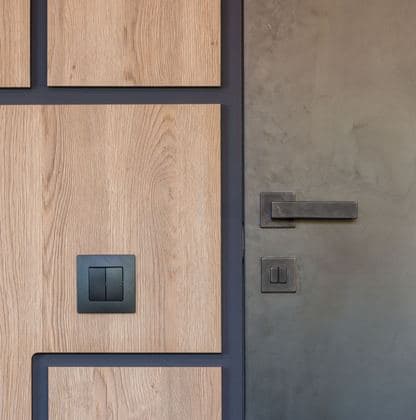
    1. Front door and lock — A flush door in wood and plaster with a lever handle and a switch plate; no damage visible. Only one straight-on photo, so the cylinder and the door stop are out of frame.

    2. Intercom and doorbell — No photo.

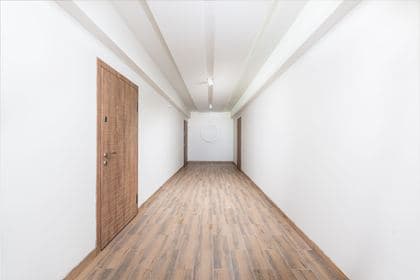
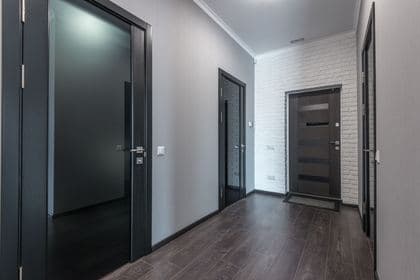
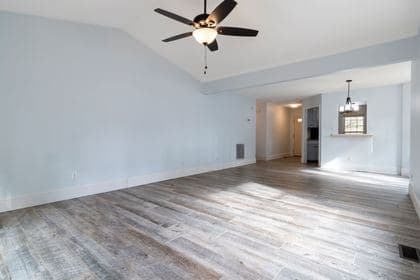
    3. Entrance floor and walls — Two photos. The first shows white walls and a light wood floor with no marks or lifting. The second shows dark joinery and a dark floor: a different finish from the first. Confirm both are this unit.

    Kitchen

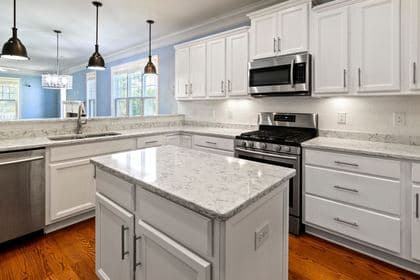
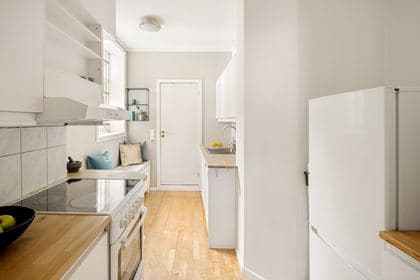
    8. Kitchen sink and faucet — Two photos, both wide shots of the room; neither is close on the sink or the faucet. The site note reads "faucet drips slowly, cabinet under sink needs a new hinge", and neither is visible in the photos. Retake.

    9. Stove and cooktop — No photo.

    10. Range hood — No photo.

    Bathroom

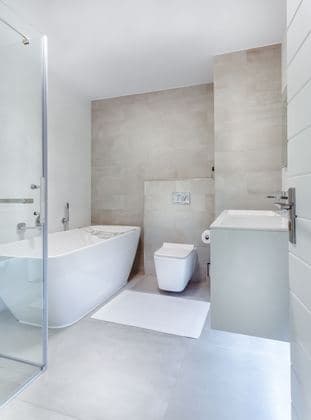
    11. Bathtub and shower — Tub, glass shower screen and toilet in one frame. The note reads "grout discoloured along the left edge"; the shot is too wide to see the grout. Retake.

    12. Washbasin — Underexposed: only the outline of the counter and the faucet is readable. Retake.

    13. Toilet — No photo.

    Living, Bedroom, Exterior and Utilities follow the same shape and are left out here.

    Needs work

    • Kitchen faucet dripping and the under-sink hinge — from the site note; no photo yet.
    • Discoloured grout on the left edge of the bath — from the site note; no photo yet.

    Photos to retake

    ItemFileWhy
    Washbasinitem_012_1.jpegUnderexposed; condition not readable
    Kitchen sink and faucetitem_008_1.jpeg, item_008_2.jpegNo close-up of what the note describes
    Bathtub and showeritem_011_1.jpegNo close-up of the grout
    Entrance floor and wallsitem_003_1.jpeg, item_003_2.jpegThe two photos show different finishes
    Balcony and railingitem_016_1.jpeg, item_016_2.jpegThe two photos show different buildings

    What the report was looking at

    Two of the five flagged photos, as they came out of the export. The assistant can name them because data.csv maps every photo to its item.
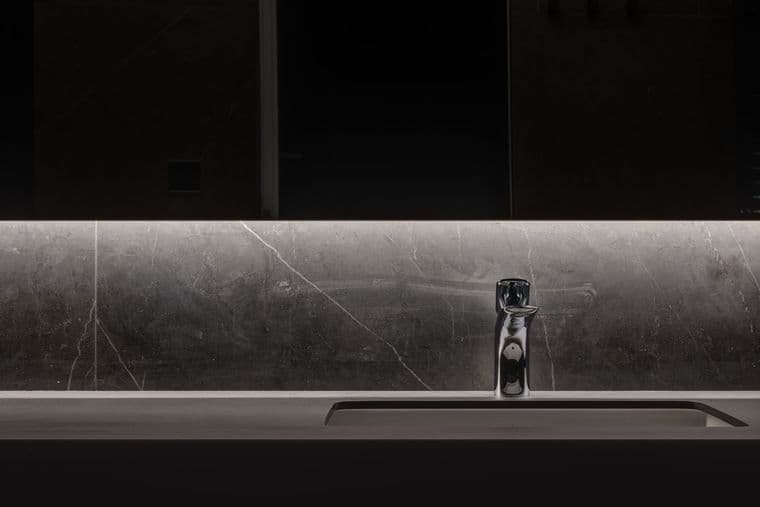
    • Washbasin

      item_012_1.jpeg

      Washbasin

      Underexposed; condition not readable
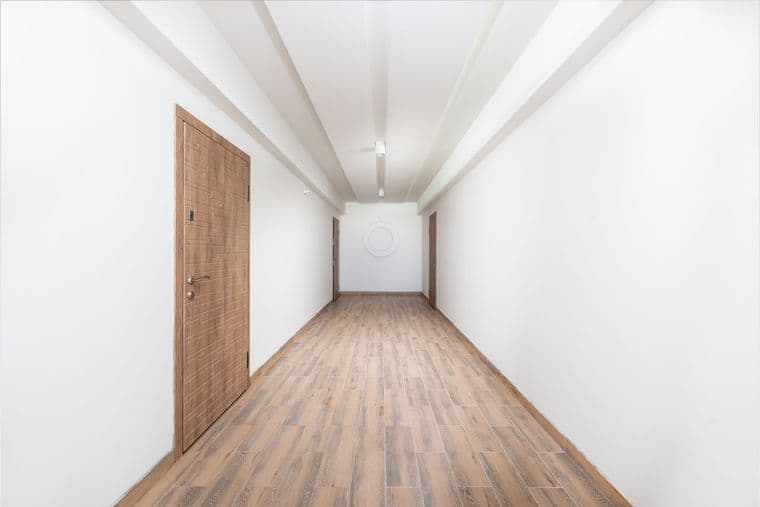
    • Entrance floor and walls (1 of 2)

      item_003_1.jpeg

      Entrance floor and walls (1 of 2)

      Light wood floor, white walls
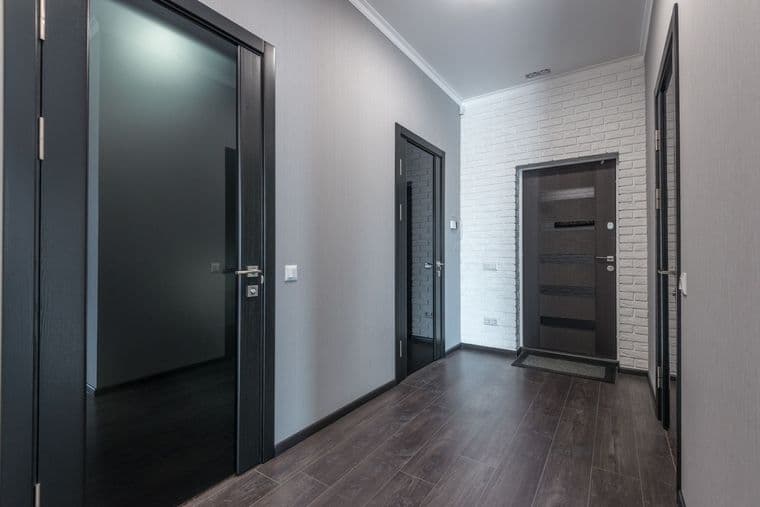
    • Entrance floor and walls (2 of 2)

      item_003_2.jpeg

      Entrance floor and walls (2 of 2)

      Dark joinery and a dark floor — a different finish

    Items with no photo (11)

    Intercom and doorbell, Windows and sashes, Air conditioner, Stove and cooktop, Range hood, Toilet, Bedroom floor and walls, Closet interior, Water heater, Electrical panel, Meter readings

About this example

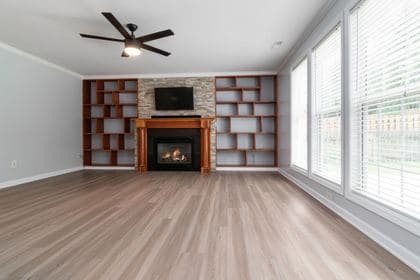
The survey is the app's own Property Inspection template filled with stock photos, so the photos do not all come from one building — which is exactly why the report says so. That is the point of the last two sections: the assistant can tell you which photos it could not use, by filename, because data.csv maps every photo to its item.

Why it holds up across sites

A checklist is fixed once imported, so every site surveyed with it exports identical item names. Hand an assistant several ZIPs and it can join them on the item column without any cleanup — that is what makes "compare these sites" a one-line request.

Here it is across three supermarkets

We took one 30-item list to three supermarkets on National Route 17 in Saitama, just north of Tokyo, and photographed 124 price tags. The three exports went to Claude, which read every tag and converted the prices so they compare fairly: per potato, per 100g of coffee.

See the price survey

Try it with your own survey.

The first two projects are free, and the README is in every export.